
Every Copy You Make,
Always Within Reach
Ditto Clipboard Manager saves your full copy history and brings it back with one hotkey. Search, filter, and paste anything you copied minutes or months ago.
What Is Ditto Clipboard Manager?
A free, open-source clipboard extension that remembers everything you copy on Windows.
Ditto Clipboard Manager is a lightweight Windows utility that extends the standard clipboard. Instead of losing your last copied item every time you press Ctrl+C, Ditto saves each entry — text, images, HTML, file paths, code snippets — into a local SQLite database. You can then recall any of those items later through a searchable popup that opens with a single hotkey.
The idea is simple. Windows only holds one clipboard item at a time. Ditto removes that limit. It runs quietly in your system tray, logging everything you copy without slowing anything down. When you need something from 10 minutes ago or 10 days ago, hit Ctrl + backtick (or whatever hotkey you prefer) and start typing to filter your history.
Who Builds It
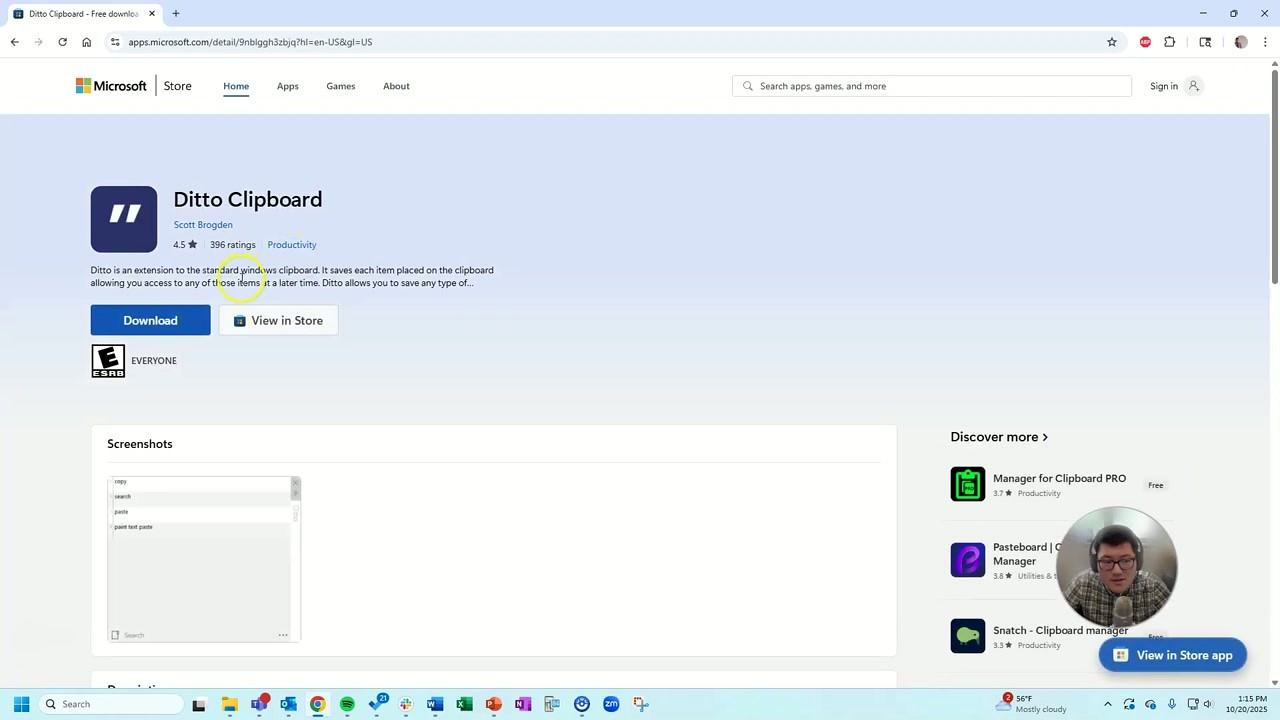
Ditto Clipboard Manager is developed by Scott Brogden and released under the GPL-3.0 license. The project is hosted on GitHub with over 6,100 stars, and has been actively maintained since its initial release. Version 3.25.113.0 is the latest build. The software is also available through the Microsoft Store, Chocolatey, and winget, which makes updates easy to manage.
Who Actually Uses It
Developers copy code fragments, URLs, and terminal output constantly. Writers juggle paragraphs, reference notes, and quotes across documents. Sysadmins paste the same commands on multiple machines. On Reddit, Ditto Clipboard Manager regularly comes up as a “must-install” on fresh Windows setups, alongside tools like Everything Search and 7-Zip. Users who switch to macOS often say they miss Ditto’s multi-select paste feature the most.
Unlike the built-in Windows clipboard history (Win+V), which only holds 25 items and resets on reboot, Ditto keeps a persistent record that survives restarts. Compared to alternatives like CopyQ (which is cross-platform but heavier) or ClipboardFusion (which pushes paid features), Ditto focuses on doing one thing well with minimal resource usage.
Ready to try it? Download Ditto Clipboard Manager or jump to Getting Started.
What Makes Ditto Different
Windows gives you one clipboard slot. Ditto Clipboard Manager gives you all of them — with search, sync, and zero tracking.
Unlimited Clipboard History
Every copy you make gets stored in a local SQLite database. Text, images, HTML, file paths, custom formats — nothing disappears when you copy something new. Your history sticks around until you decide to clear it.
Instant Search with Regex
Copied something three days ago and need it back? Type a few characters into the search bar and Ditto finds it. Power users can write regex patterns to filter results, which is handy when your history runs into thousands of entries.
One-Hotkey Access
Press Ctrl + backtick (or whatever key combo you prefer) and the clipboard list pops up immediately. Pick an item and it pastes right into your active window. The whole thing takes about a second once you build the muscle memory.
Image Thumbnail Previews
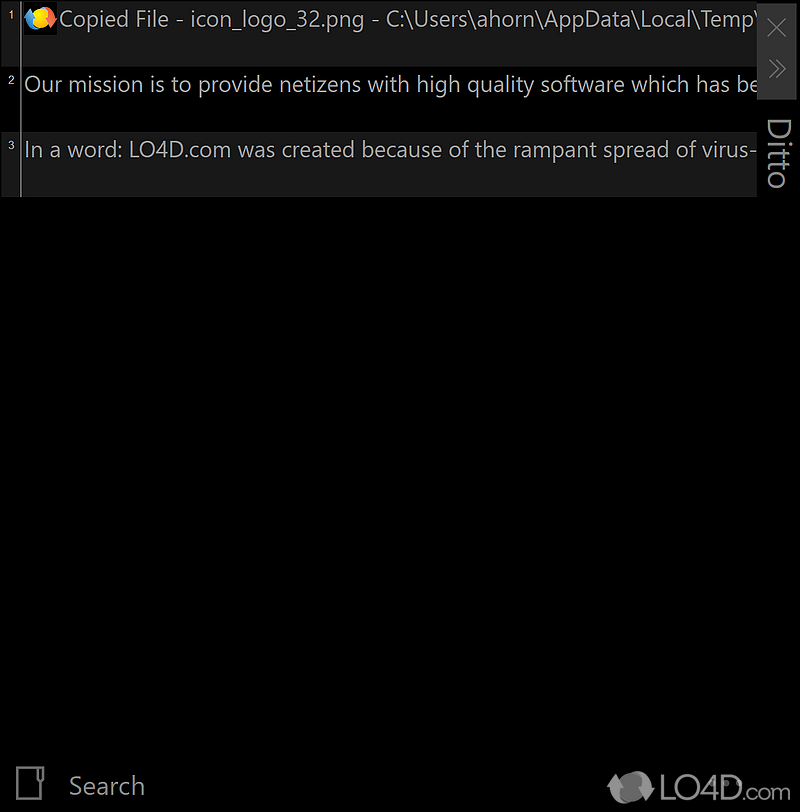
Screenshots and copied images show as visual thumbnails in the clipboard list, not just generic file labels. You can tell which image you need at a glance instead of pasting each one to check.
Multi-PC Sync with Encryption
Run Ditto on more than one machine? It syncs clipboard items between them over your local network, encrypted in transit. Copy text on your desktop and paste it on your laptop without any cloud service sitting in between.
Sticky Clips (Pinned Items)
Addresses, email templates, code snippets you reuse constantly — pin them as sticky clips. Pinned items stay at the top of your list so you never have to search for the things you paste every day.
Drag-and-Drop Paste
Not every app plays nice with keyboard shortcuts. With Ditto, you can drag items from the clipboard list directly into any window that accepts drops. Useful for moving snippets into editors, email clients, or file managers.
Light and Dark Themes
Ditto ships with both light and dark mode options for its UI. If you work late, the dark theme keeps the clipboard popup from blinding you. Switch between them in settings based on your preference.
Per-App Paste Shortcuts
Some applications use non-standard paste behavior. Ditto lets you configure paste shortcuts on a per-application basis, so the correct keystroke fires for each program you use. No more manual workarounds for stubborn apps.
Local-First, No Telemetry
Ditto stores everything on your machine. There is no account to create, no cloud to connect to, and no data sent back to anyone. Your clipboard history stays on your hard drive, period. Unlike CopyQ or ClipboardFusion, there is no optional cloud sync that could expose your data.
Minimal Resource Usage
Ditto sits in your system tray and barely uses any RAM or CPU. It loads on startup, stays out of your way, and just works. Most users forget it is running until they need to pull up an old clip.
Portable Version Available
Prefer not to install anything? The portable build runs from a USB drive or any folder with no registry changes. Carry your clipboard manager and its full history between machines without leaving a trace on the host system.
All features are free and open source under GPL-3.0. Download Ditto Clipboard Manager to try them yourself.
Download Ditto Clipboard Manager
Get the latest version of Ditto Clipboard Manager for your Windows PC. Pick the installer for a standard setup or grab the portable build if you prefer no installation.
Ditto Clipboard Manager for Windows
The recommended download for most users. This installer adds Ditto to your system, configures auto-start, and sets up the default Ctrl+` hotkey so clipboard history is one keypress away.
Download Ditto Clipboard ManagerWindows Installer (.exe) | ~4.5 MBWindows Installer
Standard .exe installer. Adds Start Menu shortcut, auto-start entry, and uninstaller. Best for most users.
Download .exePortable Version
No installation required. Extract to any folder or USB drive and run directly. Settings stay in the same folder.
Download .zipMicrosoft Store
Auto-updates through the Store. Runs sandboxed. File size around 12.8 MB. Requires Windows 10 or newer.
Visit Store PageInstall via Package Manager
All downloads come directly from the official Ditto GitHub repository. Ditto is free, open-source software maintained by Scott Brogden and signed via SignPath.io for verified authenticity.
System Requirements
Ditto Clipboard Manager is built for efficiency. It runs on almost any Windows machine without heavy hardware demands.
| Component | Minimum | Recommended |
|---|---|---|
| Operating System | Windows 7 (32-bit or 64-bit) | Windows 10 or 11 (64-bit) |
| Processor | 1 GHz single-core (x86 or x64) | 1.5 GHz dual-core or faster |
| RAM | 512 MB | 2 GB or more |
| Disk Space | 15 MB (installer) or 10 MB (portable) | 50 MB+ (includes clipboard database growth) |
| Display | 800 x 600 resolution | 1280 x 720 or higher |
| Internet | Not required (fully offline capable) | Optional for network clipboard sync |
| Dependencies | None (standalone, written in C/C++) | None — no .NET or Java needed |
Ditto stores clipboard history in a local SQLite database. Over time, the database file can grow depending on how many items you keep. The portable version runs from a USB drive with no installation required and carries its database file alongside the executable.
Screenshots
See Ditto Clipboard Manager in action. Browse screenshots of the main interface, settings panel, and clipboard history viewer.
Getting Started with Ditto Clipboard Manager
From download to your first paste in under five minutes. Here is everything you need to set up Ditto and start working with your full clipboard history.
Downloading Ditto Clipboard Manager
Head to our download section above to grab the latest version of Ditto Clipboard Manager (v3.25.113.0). You have three options, and the right one depends on how you like to install software.
The installer (.exe) is what most people should pick. It is around 6 MB, takes about 10 seconds on a typical connection, and handles everything automatically — Start Menu shortcut, system tray integration, the works. If you manage machines with Group Policy or scripts, grab the .msi installer instead. Same software, but the MSI format plays nicely with Windows deployment tools like SCCM.
If you want something that runs without installing anything at all, go with the portable (.zip). Unzip it, run Ditto.exe, and you are done. This is perfect for USB drives or work computers where you do not have admin rights. The portable version stores its database in the same folder as the executable, so your clipboard history travels with you.
There is also a Microsoft Store version if you prefer app store installs. It auto-updates, but runs in a sandboxed environment that limits some advanced features like network sync.
Installation Walkthrough
Double-click DittoSetup_3_25_113_0.exe to launch the installer. If Windows SmartScreen pops up with a blue warning screen, click “More info” and then “Run anyway.” Ditto binaries are code-signed via SignPath.io, so this is safe — SmartScreen just tends to flag software that has not accumulated millions of downloads through Microsoft channels.
Installer steps
- License Agreement: Ditto uses the GPL-3.0 license. Click “I Agree” to continue.
- Choose Components: The default selection includes the main application and shell integration. Leave both checked. Shell integration lets you right-click files and send them to Ditto groups (handy later).
- Install Location: The default path is
C:Program Files (x86)Ditto. Unless you have a specific reason to change it, leave this alone. - Install: Click “Install” and wait a few seconds. The entire installation is under 15 MB.
- Finish: Check “Run Ditto” before clicking Finish so the app launches right away.
Silent install (for sysadmins)
If you are deploying Ditto across multiple machines, run the installer with the /S flag:
Or use package managers:
winget install ditto
After installation
Ditto starts quietly and sits in your system tray (the small icons area near the clock in the taskbar). Look for a blue clipboard icon with white quotation marks. There is no splash screen, no registration, no account to create. It is already recording your clipboard.
Initial Setup and Configuration
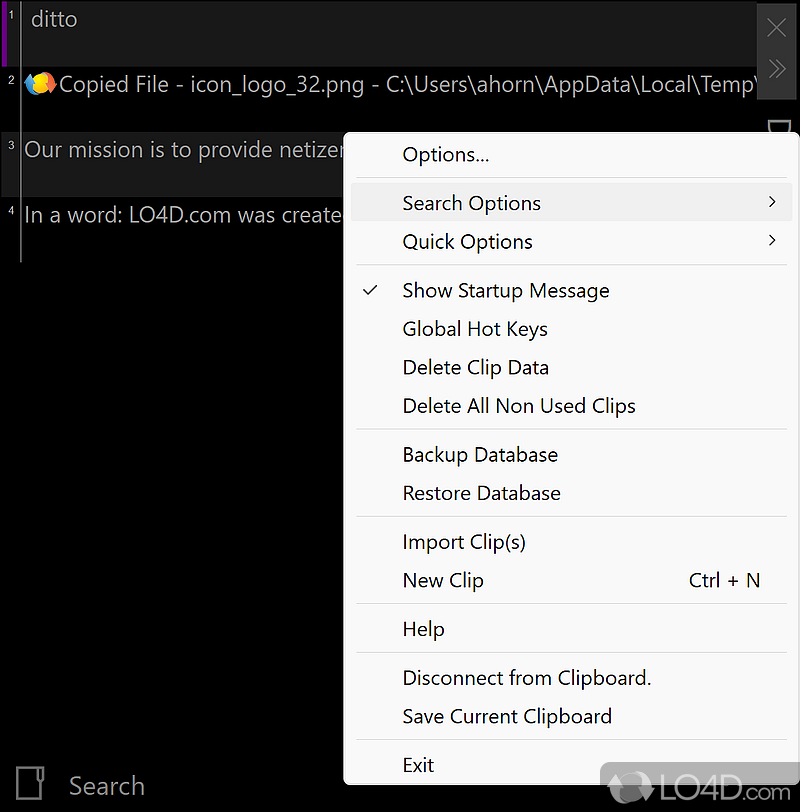
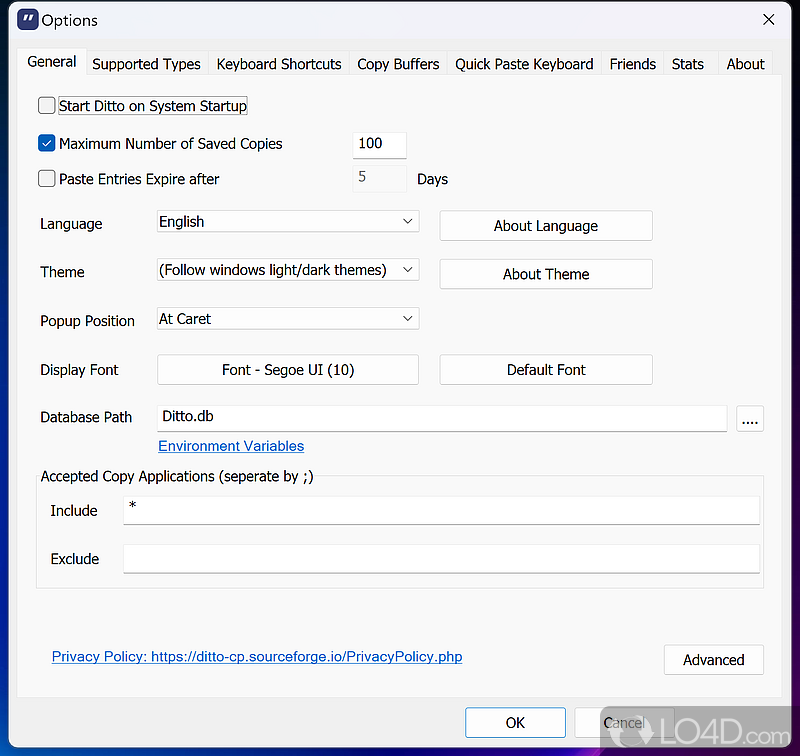
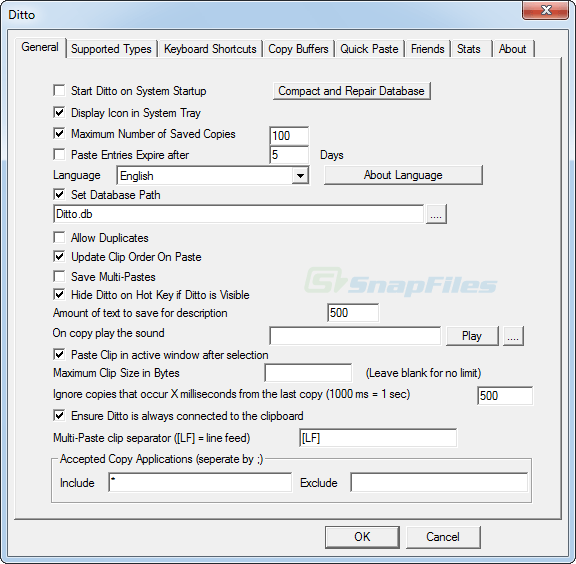
Right-click the Ditto tray icon and select Options (or press the “…” button at the bottom-right of the Ditto window). This opens the main settings dialog. There is no first-run wizard — Ditto works out of the box, but a few settings are worth tweaking right away.
General tab
- Start Ditto on System Startup: Should be checked. You want Ditto running whenever Windows starts, otherwise it misses everything you copy before you remember to launch it.
- Maximum Number of Saved Copies: Defaults to 500. Bump this to 2000 or 3000. Ditto uses a local SQLite database, so even thousands of clips barely take any disk space.
- Theme: Pick between the default light theme and dark mode. Dark mode works well if your taskbar is dark.
Keyboard Shortcuts tab
- Activate Ditto: The default hotkey is Ctrl + ` (backtick, the key above Tab). Some people change this to Ctrl + Shift + V since that is easier to remember.
- Text Only Paste: Assign a hotkey here (like Ctrl + Shift + T) to paste without formatting. This strips out fonts, colors, and links — just the raw text.
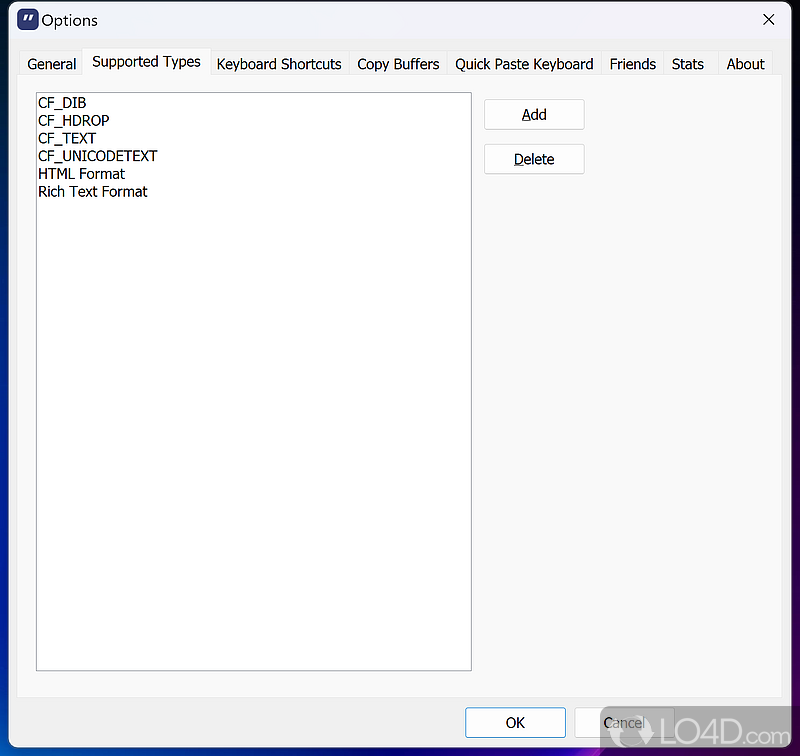
Supported Types tab
By default, Ditto captures plain text (CF_TEXT), Unicode text (CF_UNICODETEXT), images (CF_DIB), file lists (CF_HDROP), rich text (CF_RTF), and HTML. Leave all of these enabled unless you have a specific reason to exclude one.
Your First Clipboard Workflow
Let us walk through an actual task to see how Ditto works in practice. Say you are filling out a form and need to paste your name, email, and address from different places.
Copying items
Copy three things normally using Ctrl + C — your name from one document, your email from another, your address from a third. With regular Windows clipboard, only the last one survives. Ditto saves all three.
Opening the clipboard history
Press Ctrl + ` (or whatever hotkey you set). A compact window appears showing your recent clips, newest on top. Each entry shows a text preview and a timestamp. Images show a thumbnail.
Pasting from history
Click on any clip to paste it, or use arrow keys and press Enter. The item goes straight into whatever application you had focused before opening Ditto. You can also double-click a clip to paste it.
Searching clips
With the Ditto window open, just start typing. Ditto filters your history in real time — type “email” and it shows every clip containing that word. This is where bumping the max saved copies really pays off. Finding that code snippet you copied two weeks ago takes about three seconds.
Multi-select paste
Hold Ctrl and click several clips, then press Enter. Ditto pastes them all in order, separated by newlines. This is one of the features people miss most when they switch to a different OS.
Key shortcuts
| Action | Shortcut |
|---|---|
| Open Ditto clipboard | Ctrl + ` |
| Paste selected clip | Enter |
| View full clip content | F3 |
| Delete a clip | Shift + Delete |
| Select multiple clips | Ctrl + Click |
| Paste as plain text | Your assigned hotkey |
| Pin/Sticky a clip | Ctrl + F2 |
Tips, Tricks, and Best Practices
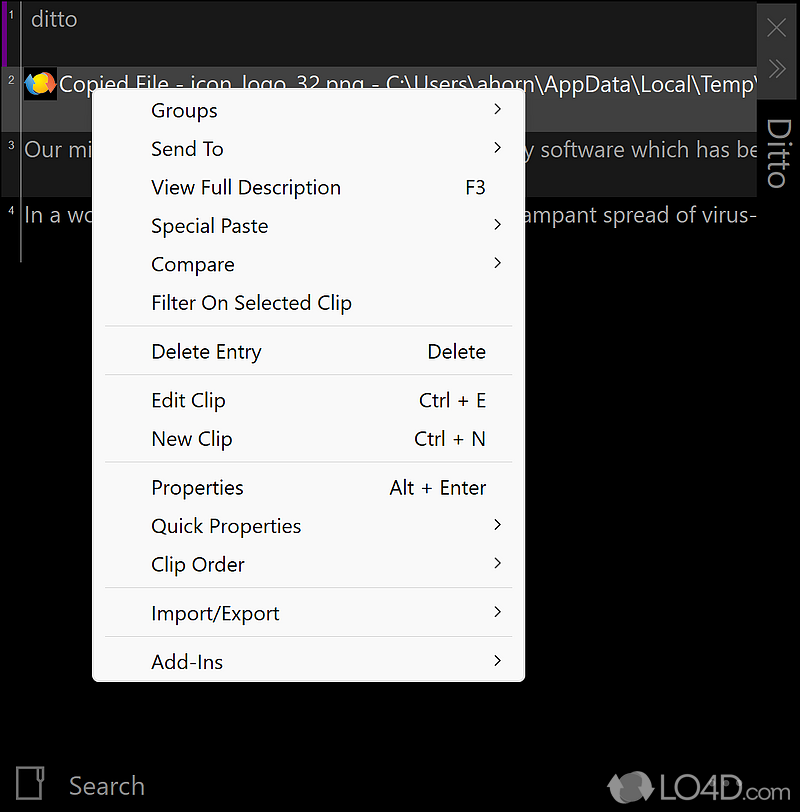
Sticky clips are pinned entries that stay at the top of your list no matter how many new things you copy. Right-click any clip and select “Quick Properties > Sticky” (or press Ctrl + F2). Use these for things you paste repeatedly — your phone number, standard email signatures, code snippets.
Groups let you organize clips into folders. Right-click a clip, choose “Groups,” and move it to a named group. Think of groups as a persistent snippet library. Unlike regular clips that eventually get bumped out by the max limit, grouped clips stick around.
Network sync lets you share your clipboard across multiple Windows machines on the same network. Go to Options > Friends tab, add the IP address or hostname of another computer running Ditto, and set a group password. Both machines need the same password. Once connected, anything you copy on one machine shows up in Ditto on the other within seconds. All transfers are encrypted.
Quick paste hotkeys give you one-key access to your 10 most recent clips. Set these up in Options > Keyboard Shortcuts > Quick Paste Keyboard tab. For example, Ctrl + 1 pastes your most recent clip, Ctrl + 2 the second-most-recent, and so on.
Database maintenance: If Ditto starts feeling slow after months of heavy use, go to Options > Database tab and click “Compact Database.” This shrinks the SQLite file and speeds up searches. The database file itself lives at C:Users[You]AppDataLocalDittoDitto.db (or in the app folder for portable installs).
Ready to get started? Download Ditto Clipboard Manager and start saving your clipboard history today.
Frequently Asked Questions
Answers to the most common questions about downloading, installing, and using Ditto Clipboard Manager on Windows.
Is Ditto Clipboard Manager safe to download?
Yes, Ditto Clipboard Manager is safe to download and use. The project is fully open source under the GPL-3.0 license, meaning anyone can inspect, audit, and compile the source code directly from its GitHub repository. The repository has over 6,100 stars and has been actively maintained by developer Scott Brogden since 2004, giving it one of the longest track records among Windows clipboard utilities.
All official release binaries (version 3.25.113.0 and later) are code-signed through SignPath.io, so Windows SmartScreen will not flag the installer. The software is also distributed through the Microsoft Store, which runs its own malware scanning before listing any application. Independent antivirus engines on VirusTotal consistently report the installer as clean.
- Download only from official sources: GitHub Releases, SourceForge, or the Microsoft Store
- Verify the code signature by right-clicking the .exe, selecting Properties, and checking the Digital Signatures tab
- Avoid third-party download aggregator sites that may bundle adware with the installer
Pro tip: If you want the highest level of assurance, install Ditto from the Microsoft Store. Microsoft sandboxes Store apps and handles updates automatically, so you always run the latest verified build.
For direct download links from official sources, visit our Download section.
Is Ditto Clipboard Manager free from malware and spyware?
Ditto Clipboard Manager contains no malware, spyware, or telemetry of any kind. The application runs entirely locally on your machine and does not phone home to any server, collect usage data, or display advertisements. This is verifiable because the entire codebase (written in C and C++) is publicly available on GitHub under GPL-3.0.
Ditto stores your clipboard history in a local SQLite database file, typically located at C:Users[YourName]AppDataLocalDittoDitto.db. No clipboard data ever leaves your computer unless you explicitly enable the optional network sync feature between your own machines. Even then, the sync uses AES encryption and only connects to IP addresses you configure manually.
- No internet connection required for basic functionality
- No user accounts, no login, no cloud storage
- No bundled toolbars, browser extensions, or third-party offers in the installer
- Code-signed binaries via SignPath.io prevent tampering after build
Pro tip: If you handle sensitive data like passwords, configure Ditto to exclude specific applications from clipboard tracking. Go to Options > Supported Types and add exclusion rules for your password manager.
Learn more about Ditto’s privacy-focused design in our Features overview.
Where is the official safe download for Ditto Clipboard Manager?
The official download sources for Ditto Clipboard Manager are the GitHub Releases page, SourceForge, and the Microsoft Store. These are the only three channels maintained by developer Scott Brogden. Any other site offering Ditto downloads is an unofficial mirror and may bundle unwanted software.
The current release is version 3.25.113.0, published on September 27, 2025. The standard installer (DittoSetup_3_25_113_0.exe) weighs around 12.8 MB and works on Windows 7 through Windows 11, both 32-bit and 64-bit. A portable ZIP version is also available for users who prefer not to run an installer. You can also install Ditto through package managers: choco install ditto (Chocolatey) or winget install ditto (Windows Package Manager).
- Visit our Download section for direct links to all official sources
- Choose between the installer (.exe), portable (.zip), or Microsoft Store version
- After downloading, verify the file’s digital signature before running it
Pro tip: The Chocolatey and Winget package managers handle both installation and future updates automatically, making them the most convenient option for users comfortable with the command line.
For step-by-step installation instructions, see our Getting Started guide.
Does Ditto Clipboard Manager work on Windows 11?
Yes, Ditto Clipboard Manager works on Windows 11 without any issues. Version 3.25.113.0 is fully tested and compatible with all Windows 11 builds, including the latest 24H2 update. The application integrates with the Windows 11 system tray, supports both light and dark system themes, and respects the new rounded-corner UI design language.
Ditto runs alongside the built-in Windows 11 clipboard history (Win+V) without conflicts. You can use both simultaneously or disable the built-in clipboard history entirely if you prefer Ditto’s more capable interface. Ditto supports Windows 7, 8, 8.1, 10, and 11 across both 32-bit and 64-bit architectures, so upgrading your operating system will not break anything.
- Full support for Windows 11 on Intel, AMD, and ARM processors
- System tray icon and notification area integration works correctly
- High DPI and multi-monitor setups are handled properly
- Touch and pen input clipboard operations are captured alongside keyboard and mouse copies
Pro tip: On Windows 11, you can disable the built-in clipboard history to avoid confusion. Go to Settings > System > Clipboard and toggle off “Clipboard history.” Ditto will continue capturing everything independently.
Check our System Requirements for full compatibility details.
Does Ditto Clipboard Manager work on macOS or Linux?
No, Ditto Clipboard Manager is a Windows-only application. It is written in C/C++ using the Win32 API and MFC framework, which ties it directly to the Windows operating system. There are no official macOS or Linux builds, and the developer has not announced plans to port it to other platforms.
Users who switch from Windows to macOS often look for Ditto alternatives. The most recommended options based on community discussions on Reddit and Hacker News are Maccy (free, open source, lightweight) and Raycast (free tier includes clipboard history). For Linux users, CopyQ is the closest equivalent. CopyQ is cross-platform, open source, and supports scripting, though it uses a different interface style than Ditto.
- macOS alternatives: Maccy, Raycast, Paste, CopyClip
- Linux alternatives: CopyQ, GPaste, Clipman, Parcellite
- Cross-platform: CopyQ runs on Windows, macOS, and Linux if you want one tool everywhere
Pro tip: If you use both Windows and macOS machines, consider CopyQ on all of them for a consistent clipboard experience. Ditto remains the better choice if you only use Windows, thanks to its lower resource usage and tighter OS integration.
See our Features section for everything Ditto offers on Windows.
What are the minimum system requirements for Ditto Clipboard Manager?
Ditto Clipboard Manager has extremely low system requirements. It runs on any machine capable of running Windows 7 or later, which means practically any PC manufactured after 2009 will work. The application itself uses roughly 10-20 MB of RAM during normal operation and minimal CPU, making it one of the lightest clipboard managers available.
The installer is about 12.8 MB, and the local SQLite database where clipboard history is stored typically stays under 50 MB even after months of heavy use. Ditto does not require a GPU, dedicated graphics, or an internet connection for its core functionality. The only scenario where you need network access is if you enable the optional multi-computer sync feature.
- OS: Windows 7 SP1 or later (32-bit or 64-bit)
- CPU: Any x86 or x64 processor (1 GHz or faster recommended)
- RAM: 512 MB minimum (Ditto uses about 15 MB at idle)
- Disk: 30 MB for installation plus space for clipboard database
- Network: Not required unless using multi-PC sync
Pro tip: If you are running Ditto on an older machine with limited disk space, go to Options > General and set a maximum number of saved clips (the default is 500) to keep the database small.
View the full requirements table on our System Requirements page.
Is Ditto Clipboard Manager completely free to download and use?
Yes, Ditto Clipboard Manager is 100% free. There is no paid version, no premium tier, no subscription, and no in-app purchases. Every feature is available to every user at no cost. The software has been free since its initial release and remains free today under the GPL-3.0 open source license.
The GPL-3.0 license means you can download, use, modify, and redistribute Ditto without paying anything. Businesses, schools, government agencies, and individual users all have equal access to the full feature set. The developer, Scott Brogden, maintains the project on GitHub and accepts no payment for the software. There is no freemium model or feature gating of any kind.
- Free for personal and commercial use with no restrictions
- No trial period, no feature limits, no ads
- Source code available for anyone to compile and modify
- No account creation or registration required
Pro tip: If you find Ditto valuable, consider starring the project on GitHub or reporting bugs through the Issues page. Open source projects thrive on community feedback, and bug reports help Scott prioritize fixes for future releases.
Download Ditto for free from our Download section.
What license does Ditto Clipboard Manager use?
Ditto Clipboard Manager uses the GNU General Public License version 3.0 (GPL-3.0). This is one of the most widely used open source licenses, and it guarantees your right to use, study, share, and modify the software without any cost or legal restriction.
Under GPL-3.0, anyone can download the source code from GitHub, compile it themselves, and even create modified versions. The only requirement is that derivative works must also be released under GPL-3.0. For end users, this means Ditto will always remain free. No company can take the code, add features, and sell it as a closed-source product. The license has been in place since the project moved to GitHub and applies to all 6,100+ stars worth of community-validated code.
- Use Ditto on unlimited computers at work, home, or school
- Distribute copies to coworkers or friends freely
- Modify the source code for personal or organizational needs
- No attribution required for simple end-user usage
Pro tip: Enterprise IT departments sometimes require license approval before deploying software. GPL-3.0 is pre-approved in most corporate open source policies, so you can typically skip the legal review process.
Read about all of Ditto’s capabilities in our Features section.
How do I download and install Ditto Clipboard Manager step by step?
Installing Ditto Clipboard Manager takes about two minutes. Download the installer from our Download section, run the .exe file, and follow the setup wizard. The installer does not bundle any third-party software or browser toolbars.
The current installer (DittoSetup_3_25_113_0.exe, about 12.8 MB) works on all supported Windows versions from 7 through 11. Windows SmartScreen may show a warning because Ditto is not published by a large corporation. Click “More info” and then “Run anyway” to proceed. The installer is code-signed through SignPath.io, confirming it has not been tampered with.
- Go to our Download section and click the Download button for the installer
- Open the downloaded DittoSetup_3_25_113_0.exe file
- If Windows SmartScreen appears, click “More info” then “Run anyway”
- Accept the license agreement (GPL-3.0) and choose your install directory (default is fine for most users)
- Select whether to create a desktop shortcut and whether Ditto should start with Windows (recommended: yes to both)
- Click Install and wait a few seconds for the process to finish
- Launch Ditto. It will appear as a blue clipboard icon in your system tray near the clock
Pro tip: Choose “Start with Windows” during installation. Ditto is most useful when it captures your clipboard history from the moment you log in, so you never miss a copied item.
For a more detailed walkthrough, see our Getting Started guide.
Ditto Clipboard Manager portable vs installer – which version should I choose?
Choose the installer if you want Ditto to start automatically with Windows and integrate with your system normally. Choose the portable version if you want to run Ditto from a USB drive, use it on a shared or work computer without admin rights, or keep your system free of registry entries.
Both versions are identical in features and performance. The installer (DittoSetup_3_25_113_0.exe, ~12.8 MB) places files in Program Files, creates Start Menu shortcuts, adds a registry entry for auto-start, and supports silent installation via /S flag. The portable version (DittoPortable_3_25_113_0.zip, slightly smaller) runs directly from whatever folder you extract it to and stores its database alongside the executable.
- Installer: Best for daily use on your own PC. Auto-starts, auto-updates, lives in Program Files
- Portable: Best for USB drives, work computers, or machines where you lack admin access
- Microsoft Store: Best if you want sandboxed installation and automatic updates through the Store
- Chocolatey/Winget: Best for developers and sysadmins managing software via command line
Pro tip: You can run both versions simultaneously on different machines and sync clipboard history between them using Ditto’s built-in network sync feature. Just point both instances to the same sync IP.
Download either version from our Download section.
How to fix Ditto Clipboard Manager installation errors on Windows?
Most Ditto installation errors come from Windows SmartScreen blocking the installer or from antivirus software quarantining the file. Both are false positives. Ditto’s binaries are code-signed, and the installer has a clean record on VirusTotal.
If SmartScreen shows “Windows protected your PC,” click “More info” and then “Run anyway.” If your antivirus blocks the installer, add an exception for the downloaded .exe file or temporarily disable real-time scanning during installation. On corporate machines, Group Policy may prevent installations. In that case, use the portable version instead, which requires no installation at all.
- SmartScreen block: Click “More info” > “Run anyway.” The installer is signed by SignPath Foundation
- Antivirus quarantine: Restore the file from quarantine and add it to your antivirus exclusion list
- “Access denied” error: Right-click the installer and select “Run as administrator”
- Old version conflict: Uninstall any existing Ditto installation through Control Panel before installing the new version
- Corporate machine lockdown: Use the portable ZIP version, which does not require admin privileges
Pro tip: For silent deployment across multiple workstations, use the command DittoSetup_3_25_113_0.exe /S to run the installer without any user prompts. This is useful for IT administrators deploying to fleet machines.
Need more help? Check our Getting Started guide for detailed setup instructions.
How to fix Ditto Clipboard Manager not capturing clipboard entries?
If Ditto stops capturing what you copy, the most common cause is another application fighting for clipboard access. Programs like Remote Desktop (RDP), virtual machine software (VMware, VirtualBox), AutoHotkey scripts, and other clipboard managers can interfere with Ditto’s ability to monitor the clipboard chain.
First, check that Ditto is actually running by looking for its blue clipboard icon in the system tray. If the icon is missing, Ditto may have crashed. Restart it from the Start Menu or from the installation folder. If the icon is present but entries are not being captured, the clipboard viewer chain is likely broken. This is a known Windows issue where applications do not properly pass clipboard notifications to the next listener.
- Right-click the Ditto tray icon and confirm “Enable” is checked
- Close any other clipboard-monitoring applications temporarily to test for conflicts
- Open Ditto’s Options > General and verify “Start Ditto at Logon” and “Paste using Ctrl+V” are checked
- Try restarting Ditto (right-click tray icon > Exit, then relaunch)
- If the problem persists after rebooting, delete the Ditto.db file at
%APPDATA%LocalDittoto reset the database
Pro tip: If you use AutoHotkey alongside Ditto, start AutoHotkey first and Ditto second. The clipboard viewer chain gives priority to the last application registered, so Ditto needs to be registered after AHK to capture entries properly.
For more configuration help, see our Getting Started guide.
Ditto Clipboard Manager popup window stays open or freezes – how to fix?
The Ditto popup window occasionally stays visible after pasting, or the application freezes when you have a very large clipboard database. Both issues have been reported on GitHub (Issue #646 and #1065) and have straightforward fixes.
If the popup stays open after pasting, it is usually caused by the target application not responding to the paste command quickly enough. Ditto waits for the paste to complete before closing its window, and slow applications (particularly Electron-based apps, web browsers with many tabs, or IDE editors with heavy plugins) can cause a visible delay. If Ditto freezes entirely, the database file may have grown too large or become corrupted.
- Popup stays open: Press Escape to close it manually, then go to Options > Quick Paste and increase the “Delay before paste” timer by 50-100ms
- App freezes: Go to Options > General and lower the “Maximum number of saved copies” from 500 to 200
- Database corruption: Close Ditto, navigate to
%APPDATA%LocalDitto, rename Ditto.db to Ditto.db.bak, then restart Ditto (it creates a fresh database) - Memory issues: If Ditto uses more than 100 MB of RAM, purge old entries by opening Ditto, pressing Ctrl+A, then Delete to clear the history
Pro tip: Set Ditto to automatically purge entries older than 30 days. Go to Options > General > “Number of days to keep copies” and enter 30. This keeps the database lean without manual cleanup.
Learn about Ditto’s full feature set in our Features section.
Ditto Clipboard Manager stopped working after a Windows update – how to fix?
Windows updates occasionally reset the clipboard viewer chain or change background app permissions, which can prevent Ditto from capturing new clipboard entries. This happens more frequently with major feature updates (like the move from 23H2 to 24H2) than with monthly security patches.
The fix is usually straightforward: restart Ditto, and if that does not help, re-enable its auto-start entry. Some Windows updates reset the “Start with Windows” registry key or move applications out of the allowed background apps list. In rare cases, a Windows update may install a newer version of the Visual C++ runtime that conflicts with Ditto’s compiled dependencies, requiring a fresh Ditto install.
- Restart Ditto by right-clicking its tray icon > Exit, then relaunching from the Start Menu
- Check Task Manager > Startup tab and confirm Ditto is listed as “Enabled”
- Go to Windows Settings > Apps > Background apps and confirm Ditto is allowed
- If none of that works, download the latest version from our Download section and install it over the existing copy
- Your clipboard history database is preserved during reinstallation
Pro tip: After any major Windows update, open Ditto and copy a test string to verify it is capturing. This takes five seconds and saves you from discovering the issue hours later when you need something from your clipboard history.
Check our System Requirements for supported Windows versions.
How to update Ditto Clipboard Manager to the latest version?
Ditto Clipboard Manager checks for updates automatically by default. When a new version is available, it shows a notification in the system tray. You can also check manually by opening Ditto’s Options menu and looking for an update prompt, or by visiting the GitHub Releases page directly.
The current stable release is version 3.25.113.0, released September 27, 2025. Ditto does not auto-install updates, so you need to download and run the new installer when notified. Your clipboard history database and settings are preserved across updates. The installer detects the existing installation and upgrades in place without requiring an uninstall first.
- Open Ditto by pressing your configured hotkey (default: Ctrl + backtick) or clicking the tray icon
- Go to the Help menu or check Options for update notifications
- Alternatively, visit our Download section and download the latest installer
- Run the new installer. It will upgrade the existing installation automatically
- Restart Ditto after the update completes
Pro tip: If you installed Ditto via Chocolatey, update with a single command: choco upgrade ditto. Winget users can run winget upgrade ditto. Microsoft Store installations update automatically through the Store.
For first-time setup guidance, see our Getting Started guide.
Ditto Clipboard Manager vs Windows clipboard history (Win+V) – which is better?
Ditto is significantly more capable than the built-in Windows clipboard history. Windows’ Win+V feature was introduced in the October 2018 Update and covers basic needs, but it lacks search, persistent storage across reboots, network sync, and any kind of organization beyond a flat chronological list.
The built-in clipboard history stores a maximum of 25 items and clears them on reboot (unless you pin individual items). Ditto stores hundreds or thousands of entries in a local SQLite database that persists across reboots indefinitely. Ditto also lets you search through your entire history with regex support, filter by data type (text, images, HTML), pin frequently used items as “sticky clips,” and paste multiple items at once. The Windows version has a fixed-size popup window; Ditto’s window is fully resizable.
- History limit: Windows stores 25 items. Ditto stores 500+ by default (configurable)
- Persistence: Windows clears on reboot. Ditto keeps everything in a local database
- Search: Windows has no search. Ditto supports full-text and regex search
- Multi-select paste: Not available in Windows. Ditto lets you select and paste multiple entries at once
- Sync: Windows syncs via Microsoft account (cloud). Ditto syncs peer-to-peer on your local network with encryption
- Customization: Windows offers no settings. Ditto has 50+ configurable options
Pro tip: You can run both simultaneously. Use Win+V for quick recent pastes and Ditto for searching older entries or batch pasting. They do not conflict with each other.
Explore all the features that set Ditto apart in our Features section.
Ditto vs CopyQ – which clipboard manager should I use?
Ditto is the better choice for Windows-only users who want a fast, lightweight clipboard manager that stays out of the way. CopyQ is better for users who need cross-platform support (Windows, macOS, Linux) or want scriptable clipboard automation.
Ditto uses around 15 MB of RAM at idle and has a native Win32 interface that feels like a built-in Windows utility. CopyQ uses Qt framework and typically consumes 40-60 MB of RAM. Ditto’s search is faster for simple lookups, while CopyQ offers a scripting engine where you can write JavaScript-like commands to automate clipboard operations. On Slant.co, the developer community ranks Ditto #1 and CopyQ #2 among Windows clipboard managers.
- Resource usage: Ditto ~15 MB RAM vs CopyQ ~50 MB RAM
- Platform: Ditto is Windows-only. CopyQ runs on Windows, macOS, and Linux
- Scripting: CopyQ has a built-in scripting engine. Ditto has no scripting support
- UI style: Ditto feels native to Windows. CopyQ uses Qt, which looks slightly different from native apps
- Network sync: Both support it, but Ditto’s is simpler to configure
- Community size: Ditto has 6,100+ GitHub stars. CopyQ has 8,900+ stars
Pro tip: If you only use Windows and value speed and simplicity, go with Ditto. If you switch between operating systems or want to write custom clipboard workflows, CopyQ is worth the extra memory overhead.
Download Ditto and try it yourself from our Download section.
How to sync clipboard history between multiple computers with Ditto?
Ditto Clipboard Manager has a built-in network sync feature that lets you share clipboard history between multiple Windows PCs on the same local network. The sync happens peer-to-peer with AES encryption, so no data passes through any third-party server or cloud service.
To set up sync, all machines must run Ditto and be connected to the same network (LAN or VPN). Each instance needs the IP addresses of the other machines entered in its sync configuration. The sync uses a configurable port (default: 23443) and encrypts all transmitted data. Once configured, any item you copy on one machine appears in Ditto’s history on all connected machines within seconds.
- Open Ditto on the first computer and go to Options > Friends
- Click “Add” and enter the IP address of the second computer
- Check “Allow friends to connect” and optionally set a shared password
- Repeat on the second computer, entering the first computer’s IP
- Both machines must use the same port number and encryption password
- Test by copying text on one machine and pressing Ctrl+backtick on the other
Pro tip: If you work with a laptop and desktop, set up sync once and your clipboard travels with you between machines. Copying a URL on your desktop and pasting it on your laptop a moment later is one of those small workflow improvements that saves real time over a workday.
Learn about all available networking options in our Features section.
How to search clipboard history and use sticky clips in Ditto?
Ditto’s search bar is accessible the moment you open the clipboard popup (default hotkey: Ctrl+backtick). Just start typing and Ditto filters your entire clipboard history in real time. The search supports plain text, partial matches, and regular expressions for advanced pattern matching.
Sticky clips are pinned items that remain at the top of your clipboard list regardless of when they were copied. They are useful for text snippets you paste repeatedly: email signatures, code blocks, addresses, standard replies, or frequently used URLs. Ditto does not limit the number of sticky clips you can create, and they persist across application restarts and reboots.
- Search: Open Ditto with Ctrl+backtick, then type your search term. Results update as you type
- Regex search: Prefix your search with
r:to use regular expression patterns (e.g.,r:d{3}-d{4}to find phone numbers) - Create sticky clip: Right-click any item in the list and select “Make Sticky” or press Ctrl+F2
- Remove sticky: Right-click the sticky item and select “Remove Sticky”
- Group sticky clips: Create named groups under Options > Groups to organize frequently used snippets by category
Pro tip: Combine sticky clips with Ditto’s Groups feature to build a personal snippet library. Create groups like “Email Templates,” “Code Snippets,” or “Addresses” and assign clips to each group. This turns Ditto into a lightweight text expander without needing a separate tool.
Explore the full range of Ditto’s features in our Features section.
Still have questions? Check the official Ditto wiki or visit the Download section to get started.